Importing Properties
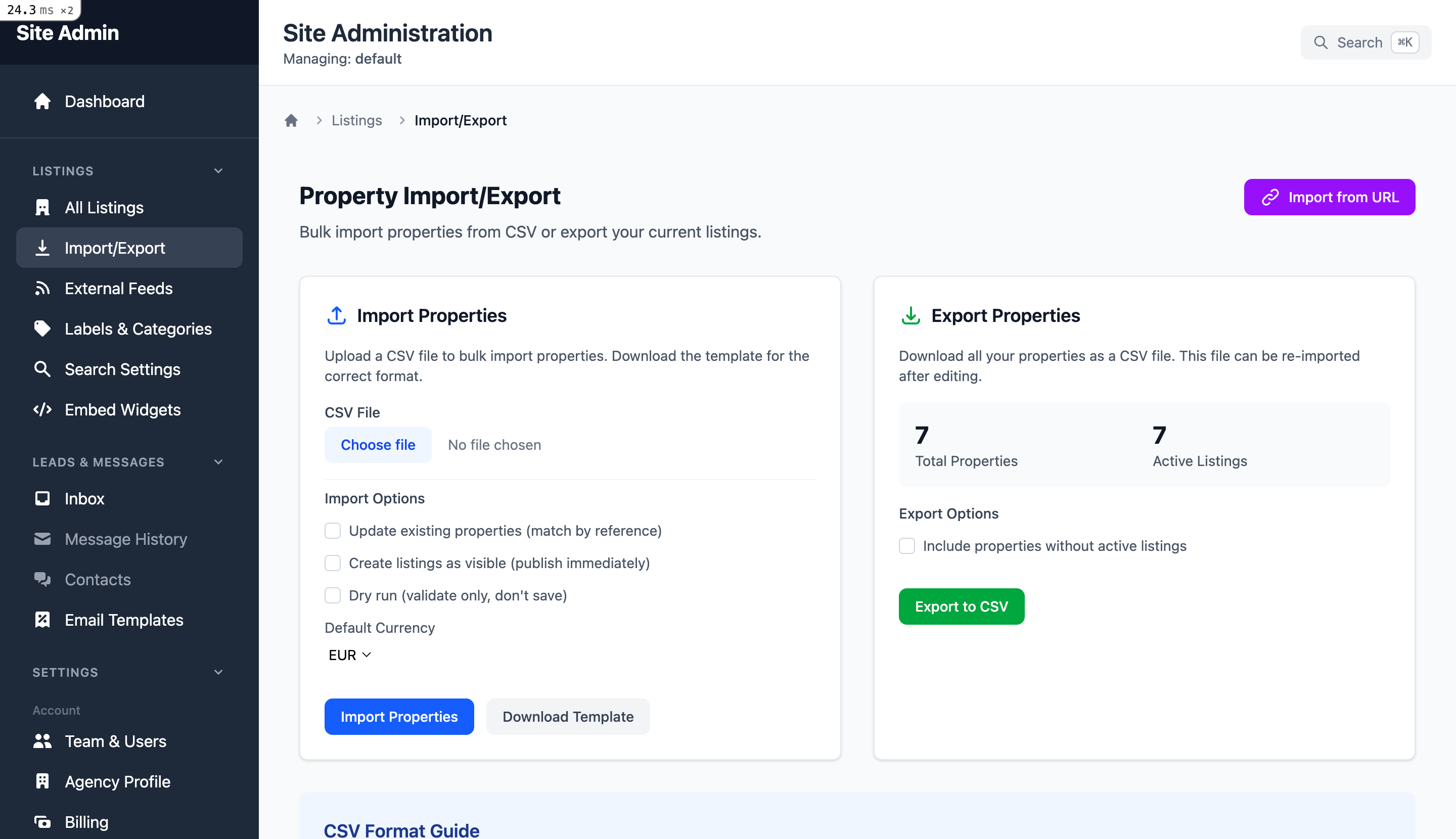
Bulk import properties from a CSV file at
/site_admin/property_import_export
Step-by-Step Import Process
-
1
Download the Template
Click "Download Template" to get a CSV file with all the correct column headers.
-
2
Fill in Your Data
Open the template in Excel or Google Sheets and add your property data.
-
3
Upload the CSV File
Select your completed CSV file for upload.
-
4
Configure Import Options
Set options like currency, visibility, and duplicate handling.
-
5
Run Dry Run First
Test the import without saving to catch errors.
-
6
Run Final Import
Once dry run looks good, run the actual import.
Import Options
Update properties with matching reference numbers
Skip rows with existing reference numbers
Make imported properties visible immediately
Test import without saving changes
CSV Format Reference
Your CSV file should include these columns. Required fields are marked with *.
| Column | Description | Example |
|---|---|---|
| reference * | Unique property ID | PROP-001 |
| street_address | Full address or street | 123 Main Street |
| city | City name | Barcelona |
| region | State/province | Catalonia |
| postal_code | ZIP/postal code | 08001 |
| country | Country name | Spain |
| prop_type_key | Property type key | types.apartment |
| count_bedrooms | Number of bedrooms | 3 |
| count_bathrooms | Number of bathrooms | 2 |
| constructed_area | Size in sq meters/ft | 120 |
| for_sale | Listed for sale | true |
| for_rent | Listed for rent | false |
| price_sale | Sale price (numbers only) | 250000 |
| price_rental_monthly | Monthly rent | 1500 |
| currency | Currency code | EUR |
| title_en | English title | Modern Apartment |
| description_en | English description | Beautiful apartment... |
| visible | Show on website | true |
| features | Comma-separated feature keys | pool,parking,terrace |
Dry Run Testing
Always Use Dry Run First!
Dry run tests your import without saving any data. This lets you catch and fix errors before the actual import.
The dry run results show:
- How many properties would be imported
- How many would be skipped (duplicates)
- How many would fail with errors
- Detailed error messages for each problem
Exporting Properties
Export all your properties to a CSV file for backup or migration.
- 1. Go to
/site_admin/property_import_export - 2. Set export options:
- Include inactive listings
- Include archived listings
- 3. Click "Export CSV"
- 4. Download the file (named
properties_[subdomain]_[date].csv)
Troubleshooting
CSV Not Uploading
- - Verify the file is in .csv format
- - Check file size limits
- - Ensure proper permissions
Import Errors
- - Review error log for specific issues
- - Check that required fields are present
- - Verify data format matches template
- - Make sure property type keys are valid
Duplicate Properties
- - Use "Update Existing" to overwrite
- - Or use "Skip Duplicates" to ignore
- - Reference numbers must be unique