On This Page
Overview
Manage your team at /site_admin/users.
Add team members with appropriate roles to collaborate on your website.
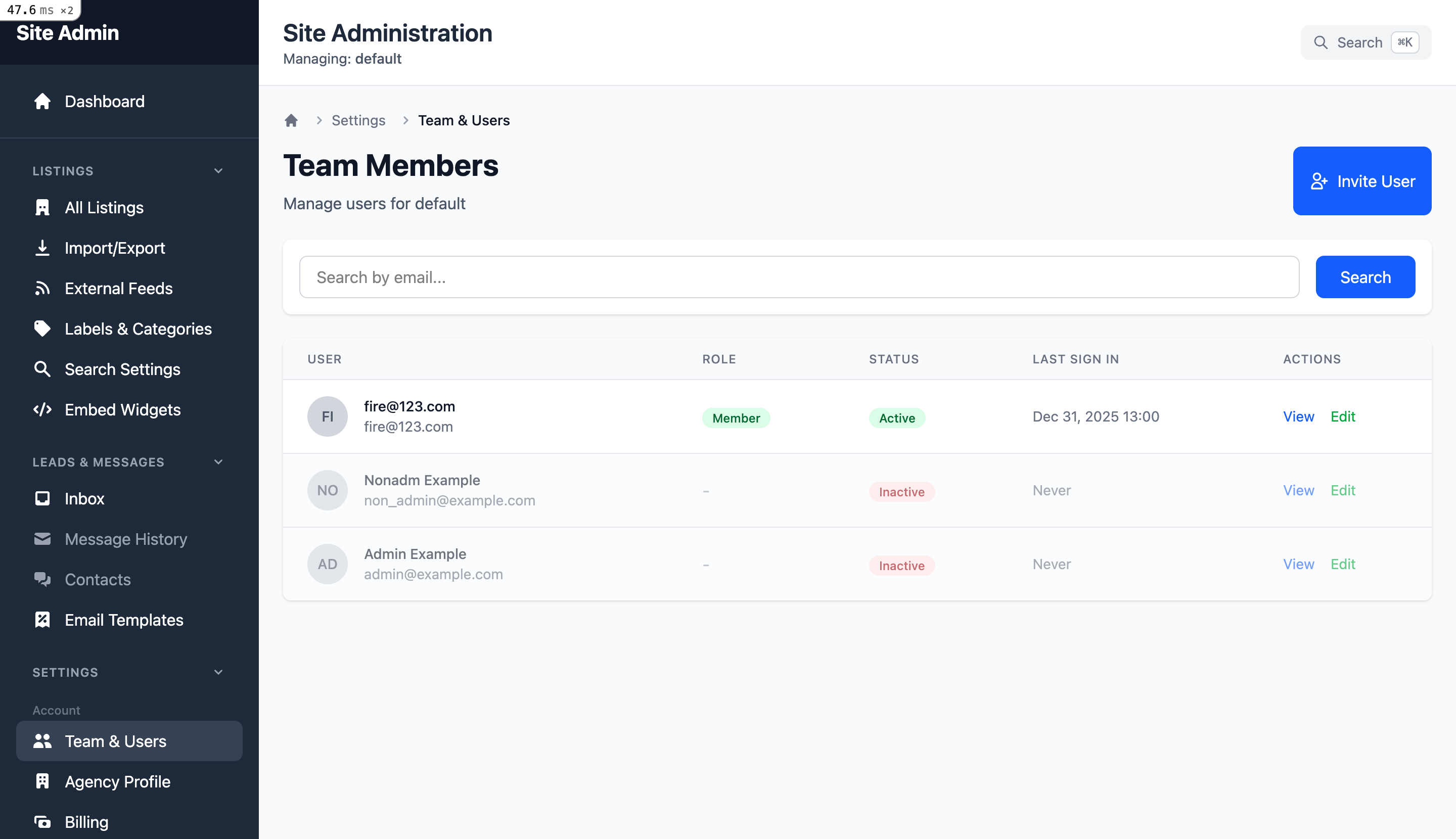
The Team & Users page displays all team members with their roles and provides options to invite new members or manage existing ones.
Adding Team Members
Go to /site_admin/users/new to add a new team member.
Steps to Add a User
-
1
Enter email address
The user's email will be their login credential
-
2
Enter name details
First and last name for identification
-
3
Select role
Choose Owner, Admin, or Member based on their responsibilities
-
4
Click Create
System sends an invitation email with password setup link
Invitation Email
New users receive an email with a link to set their password and complete their account setup.
User Roles
PropertyWebBuilder uses three roles with different permission levels:
Owner
Full access to all features and settings.
- All property management
- All website settings
- Manage all users
- Billing access
- Delete website data
- Full analytics access
Admin
Can manage most features except billing and owner-level settings.
- Create/edit properties
- Website settings
- Manage lower-role users
- View analytics
- Cannot access billing
- Cannot manage owners
Member
Limited access, mainly viewing with some editing capabilities.
- View all properties
- Edit property details
- View analytics (read-only)
- No user management
- Limited settings access
- No billing access
Managing Users
Edit User Details
Update name, phone number, and role at /site_admin/users/:id/edit
Deactivate User
Temporarily remove access without deleting the user account
Reactivate User
Restore access for a previously deactivated user
Resend Invitation
Send the invitation email again if the user didn't receive it
Remove from Team
Completely remove a user's access to the website
Permission Rules
Important rules about managing users:
You cannot modify users with equal or higher roles than yourself
You cannot remove or downgrade yourself
The sole owner cannot be removed or downgraded
Only Owners and Admins can manage team members