Overview
Property management is the core feature of PropertyWebBuilder. From the admin panel at
/site_admin/props, you can:
Property Listing
The property listing page shows all your properties in a table format with key information at a glance.
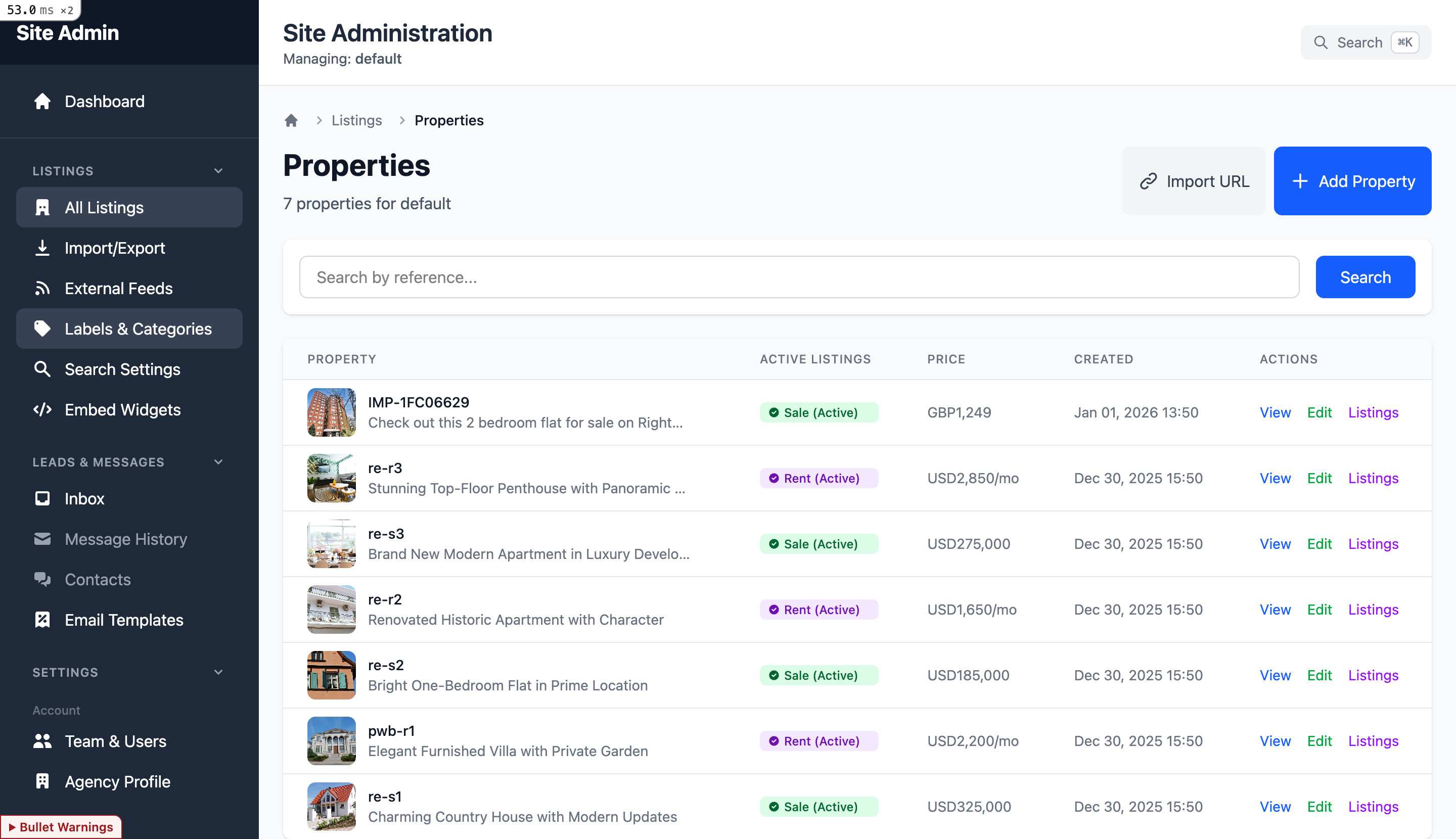
Table Columns
- Property - Reference and title with thumbnail
- Active Listings - Sale or Rent status badges
- Price - Current listing price
- Created - Date property was added
- Actions - View, Edit, Listings links
Quick Actions
- Add Property - Create new listing
- Import URL - Import from external URL
- Search - Find by reference
Creating a New Property
To create a new property, go to /site_admin/props/new:
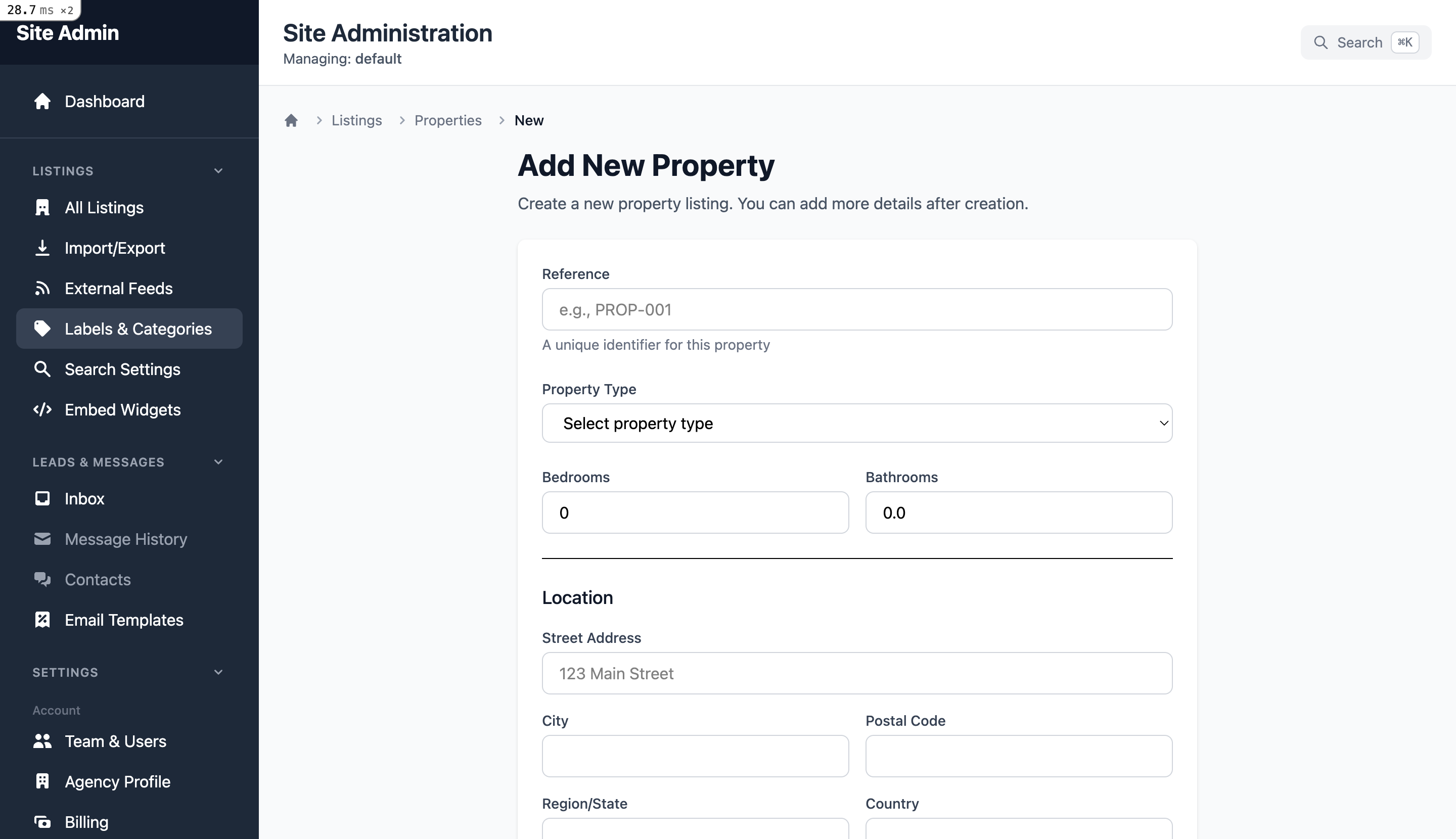
New Property Form Fields
Basic Information
- Reference - Unique identifier (e.g., PROP-001)
- Property Type - Select from dropdown:
Apartment House Villa Penthouse Studio Townhouse Land Commercial Office
- Bedrooms - Number of bedrooms
- Bathrooms - Number of bathrooms (supports .5)
Location
- Street Address - Full street address
- City - City name
- Postal Code - ZIP or postal code
- Region/State - State or region
- Country - Country name
After creating the property, you'll be redirected to the edit page where you can add photos, pricing, descriptions, and more details.
Property Editing Tabs
Properties are edited through a tabbed interface with 6 sections:
1. General Information
edit_general
- Reference number
- Bedrooms, bathrooms, garages
- Plot area and constructed area
- Year of construction
- Energy rating
- Property state and origin
2. Text & Descriptions
edit_text
Multi-language support for all text fields:
Sale Listings:
- Title (per locale)
- Description (per locale)
- SEO title and meta description
Rental Listings:
- Title (per locale)
- Description (per locale)
- SEO title and meta description
3. Sale & Rental Pricing
edit_sale_rental
Sale Options:
- Sale price with currency
- Commission amount
- Visibility toggle
- Highlight/Featured option
- Archive status
Rental Options:
- Monthly rental price
- Seasonal pricing (low/high)
- Short-term/long-term options
- Furnished status
4. Location
edit_location
- Street number and name
- Full street address
- Postal code
- City and region
- Country
- Latitude and longitude (GPS)
5. Labels & Features
edit_labels
Organize properties with customizable labels:
6. Photos
edit_photos
- Upload multiple photos at once
- Drag-and-drop to reorder
- External image URLs (if enabled)
- Remove individual photos
Managing Property Photos
Photos are essential for property listings. Here's how to manage them:
Upload Photos
- 1. Go to the property's Photos tab
- 2. Click "Upload" or drag files into the upload area
- 3. Select multiple images at once
- 4. Wait for upload to complete
Reorder Photos
Drag and drop photos to change their order. The first photo will be the main/featured image.
External Images
If your website has "External Image Mode" enabled, you can paste image URLs instead of uploading files.
Searching Properties
Use the search bar on the property listing page to find specific properties:
Search by Reference
Enter "PROP-001" to find exact match
Search by Title
Enter "apartment" to find matching titles
Search by Address
Enter "Main Street" to find by address
Search by City
Enter "Barcelona" to find by city